
Home Assistant + Elgato Stream Deck
Run every light in your room from a Stream Deck without writing a line of code
The ceiling fan, the floor lamps, the umbrella light, the key lights on my desk — all of it is one button press away. Free plugin, one access token, about ten minutes. Here's the whole setup, including the one mistake that makes your buttons look broken.
No coding required. No email required. No paywall.
Watch the walkthrough
Seven buttons. Ten minutes. Zero code.
I had both of these sitting on my desk for a long time and assumed pairing them would be complicated. It wasn't. The video shows the plugin install, the token, the three fields, the frozen-icon trap, and the shortcut at the end.
What you'll be able to do
Your whole room, on the desk in front of you.
Lights, lamps and fans
Ceiling fan, floor lamps, key lights, umbrella light — every fixture in the room becomes one button on your desk.
Buttons that show state
The icon watches the device. If something gets switched from an app or a wall switch, you can see it on the deck.
Dumb devices too
A regular lamp on a $15 smart plug shows up as a switch. Anything you already own becomes pressable.
Animated custom icons
Stream Deck accepts GIFs. Spinning fans, glowing lamps, two images per button — one for on, one for off.
The frozen-icon fix
The one setting that makes a working button look broken, and the 10-second check that fixes it.
The AI shortcut
Let an assistant on your computer fill in every field, audit the crossed buttons, and even draw the icons.
Before you start
What you need (and what you don't).
A Stream Deck
Any model. Mini, MK.2, XL, Plus — whatever you already have is fine.
Home Assistant running
This isn't an install guide — I'm assuming it's already up somewhere on your network. Apple Home integration is optional.
No special hardware
Mine runs on a 12-year-old Dell OptiPlex 7020 I got off Facebook Marketplace for fifty bucks. It lives under my desk.
How it works
Three steps to your first working button.
Plugin, token, button. That's the whole thing.
Step 01
Install the Home Assistant plugin
Open the Stream Deck app, go to the store, search Home Assistant, and install the plugin by Christoph G. It adds two actions: Entity generic and Entity custom icons. Use the custom icons one if you want the button to swap between two images.
Step 02
Create a Long-Lived Access Token
In Home Assistant, click your name at the bottom of the sidebar, open Security, and scroll to the bottom to Long-Lived Access Tokens. Create one, name it Stream Deck, and copy it right away — it's only shown once. It lasts 10 years.
Step 03
Wire up your first button
Drag the action onto an empty button, paste your Home Assistant address (mine is just the local IP on port 8123, plain http) and the token. If the dropdown fills with your real devices, you're connected. Then set Domain (light, switch, fan), Service (toggle) and Entity.
The domain field is the sneaky useful one
My umbrella light isn't a smart light at all. It's a regular light plugged into a smart plug, so Home Assistant sees it as a switch instead of a light. Fifteen bucks, and anything you already own becomes something you can put on a button.
The mistake everybody makes
Button works, icon frozen? It's the Appearance tab.
Short Press tab
What the button does
Domain, service and entity for the device you're actually toggling.
Appearance tab
What the icon watches
A second, separate entity setting. This is the one that gets left behind when you duplicate a button.
Duplicate a button to save time — which I did, a lot — and only one of those two settings comes along. So the button works, the light comes on, but the icon sits there frozen and you think the plugin is broken. It isn't. It's watching a completely different device. If the button works and the picture never changes, go check the Appearance tab.
Rename your devices before you start
All four of my back lights were named "Smart RGBTW Bulb." Identical. A few buttons ended up crossed because I had no idea which device was which. Give everything a custom name in Home Assistant first, or you'll spend the afternoon flipping lights on and off trying to figure out what's what.
Free graphics pack
Download the Stream Deck icons I use.
The pack includes four matching on/off pairs for an umbrella light, floor lamp, office fan, and office light. The on states are animated GIFs, including the spinning fan and glowing lights.

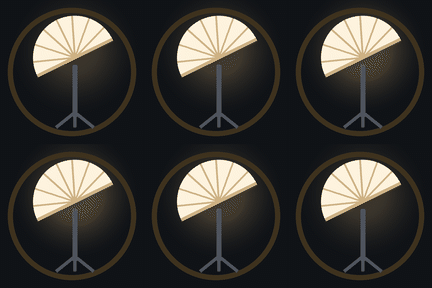
Umbrella light


Floor lamp


Office fan

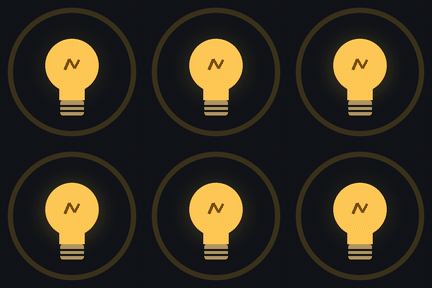
Office light
8 ready-to-use graphics
Download one ZIP file with all eight 144 × 144 icons and a quick README. No email, no paywall.
How to set both states
- You get two images per button — one for each state.
- Turn the device on and choose its animated ON image.
- Turn the device off and choose its matching OFF image.
- The two dots under the icon show the current device state; they are not a picker.
The easiest way
Let an AI assistant do the boring part.
Everything above? You might not have to do any of it yourself. I gave Claude access to my computer and it did the clicking. It found all my devices, filled in every field, and saved the configs. It also went through all seven buttons one at a time and caught the one that was crossed — pressing one light while watching another. I never would have found that. It even made the icons; I just described the spinning fan, the lamps and the umbrella, and it drew them.
It can't reach over and press a physical key on the deck, but it can drive the Stream Deck app directly. So the tedious middle part — seven buttons, four fields each — just got done.
You have access to my computer. The Elgato Stream Deck app and
Home Assistant are both open.

1. List every Home Assistant entity available in the plugin dropdown, grouped
   by domain (light, switch, fan).
2. For each button I name below, configure the Home Assistant "Entity custom
   icons" action: set Domain, Service (toggle), and Entity on the Short Press
   tab, AND set the matching entity on the Appearance tab.
3. When done, go through every button one at a time and verify the Short Press
   entity and the Appearance entity match. Report any mismatches.

Buttons:
- [button name] -> [device]
New to letting an assistant drive your machine? Start with my Claude Computer Use guide.
Behind the video
The gear I use to make these.
Everything here is sitting in my office right now. If you buy through an Amazon link, I earn a small commission — it helps the channel, and costs you nothing extra.
Sony Alpha a5000
Compact mirrorless camera for talking-head videos.
View on Amazon →Elgato Facecam
Dedicated webcam when I don't want to rig the mirrorless.
View on Amazon →Elgato Key Light
Bright, dimmable, computer-controlled key light.
View on Amazon →Elgato Stream Deck +
One-press control for lights, scenes, and apps.
View on Amazon →Elgato Wave:3 Mic
Clean mic for voiceovers and screen recordings.
View on Amazon →DJI Mic Mini
Wireless lav mic for away-from-desk shots.
View on Amazon →Elgato Prompter
Built-in screen so I can read while looking at the lens.
View on Amazon →Meross Smart Plug
Reliable HomeKit smart plugs for fans and lamps.
View on Amazon →Govee Smart Bulbs
Color Wi-Fi bulbs with app and voice control.
View on Amazon →EMART Umbrella Lights
Budget-friendly fill lights for even coverage.
View on Amazon →Amazon Associates disclosure: I earn from qualifying purchases. I only list gear I own and use.
More from Chad
Keep exploring
- Visit page
AI Visibility Sprint
A one-week sprint for Murfreesboro and Rutherford County businesses, starting with a free visibility check.
- Visit page
OpenSteps + Codex (Sponsored)
Free skills that helped a non-developer plan, check, and finish real app work.
- Visit page
My Top 5 Muse AI Uses
Real tasks I handed off, from everyday check-ins to a dentist call.